Transform Google Sheets into a Powerful QR Code Label Generator
Managing inventory, organizing store assets, tracking product shipments, or organizing event passes usually requires juggling data between spreadsheets, online barcode generators, and graphical design software. This back-and-forth process is slow, repetitive, and prone to formatting errors.
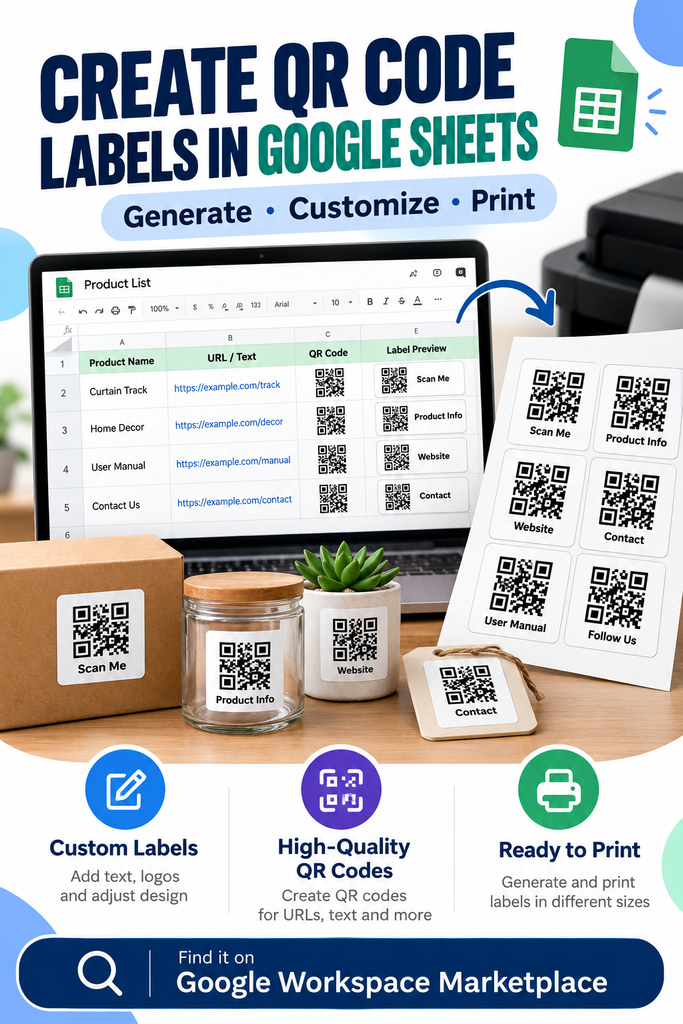
With the QR Code Label Generator Add-on by SheetMake, you can now build, format, and export custom QR code labels directly inside Google Sheets in seconds—without ever leaving your spreadsheet environment.
Built for Speed, Scale, and Simplicity
Whether you need a single custom label or dozens of product tags, the QR Code Label Generator automates the entire workflow from raw data entry to print-ready output.
1. Instant Batch QR Generation
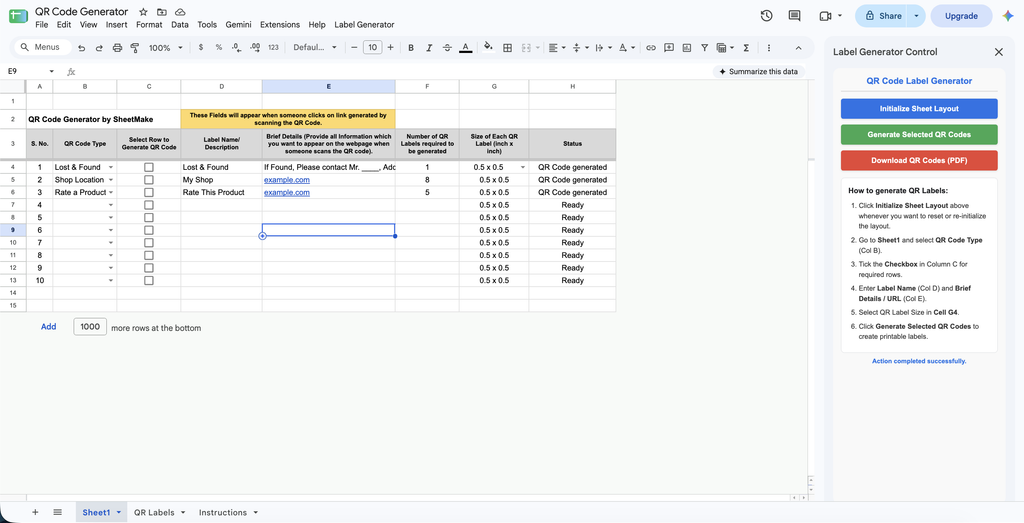
Instead of generating QR codes one by one, simply fill out your details across rows in your spreadsheet. Specify the exact number of copies needed for each item (from 1 to 10 copies per label entry), select your target rows, and let the add-on process everything automatically in one smooth batch operation.
2. Smart Google Drive & Google Doc Integration
What if your QR code needs to share detailed text information rather than a simple website URL? The add-on features intelligent content detection:
- Direct Web Links: If you enter a website URL, the QR code links straight to your webpage.
- Text & Details: If you enter text descriptions, instructions, or contact details, the add-on automatically creates a formatted, view-only Google Document in your Google Drive folder (
QR_Code_Files) and links your QR code directly to that document. Anyone who scans the QR code gets instant access to your detailed notes!
3. Print-Ready A4 PDF Exports
Formatting images and labels in spreadsheets for printing is notoriously difficult. The QR Code Label Generator solves this by automatically structuring all generated labels into a precise, boxed grid layout optimized for A4 paper. Choose your label dimensions—ranging from 0.5″ x 0.5″ up to 3.0″ x 3.0″—and click Download QR Codes (PDF) to generate a perfectly aligned, print-ready document with standard printing margins.
4. Clean, Professional Text Wrapping & Design
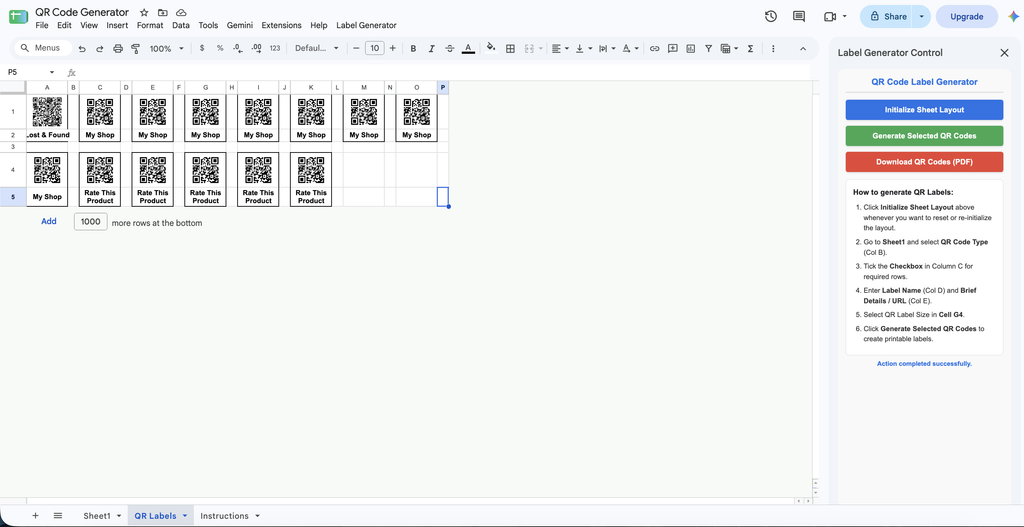
To keep your physical labels looking clean and legible, the add-on includes automatic text wrapping for label descriptions. This ensures long titles or item names stay neatly bounded within their black border frames without overflowing into adjacent columns or cells.
Step-by-Step: How to Use the Add-on
Getting started takes less than a minute:
- Initialize Your Template: Open the side panel control menu and click Start to set up the formatted workspace and user instructions sheet automatically.
- Enter Label Information: Fill in your label names, select the QR code category, enter your target URL or text details, and set your desired label dimensions in Cell G4.
- Generate Selected QR Codes: Tick the checkboxes in Column C for the rows you wish to process, then click Generate Selected QR Codes.
- Export & Print: Once your labels appear neatly arranged on the
QR Labelstab, click Download QR Codes (PDF) to save and print your sheet.
Get Started Today
Simplify your batch labeling, asset tracking, and document sharing workflows with the QR Code Label Generator by SheetMake on the Google Workspace Marketplace!
For support, feedback, or custom feature inquiries, contact us.
It’s nice to learn